

Context Link
Persistent knowledge base across all AI tools. Connect once, search everywhere, auto-sync new files.

Google Gemini
Free, native option built into Google Drive. Great for quick questions about a few files.

ChatPDF / PDF.ai
Upload-based tools for one-off document analysis. Simple but requires re-uploading each session.

Native Connectors
Connect Google Drive directly to ChatGPT or Claude. Manual file selection per conversation.
How to Chat with All Your PDFs in Google Drive (Without Re-Uploading Every Time)
You want to chat with PDFs stored in Google Drive without re-uploading them one by one. You have hundreds of documents scattered across folders: research papers, brand guidelines, product specs, campaign briefs, pricing docs. You want AI to know what's in ALL of them, not just the one you uploaded five minutes ago.
Most PDF chat tools require uploading files one by one, lose context between sessions, and limit you to a handful of documents. You upload the same brand guidelines PDF to ChatGPT on Monday, again on Wednesday, and again next week when someone asks about that messaging you vaguely remember. It's tedious and defeats the purpose of having AI "know" your content.
This guide compares four ways to chat with PDFs stored in Google Drive, from the free native option (Gemini) to dedicated upload tools (ChatPDF), to connectors, to a persistent knowledge base approach. By the end, you'll know exactly which method fits your workflow and how to set it up today.
Why Most PDF Chat Tools Fall Short
Before diving into solutions, let's be clear about the problems you're solving. Most PDF chat tools share three frustrating limitations.
The Upload-Every-Time Problem
Tools like ChatPDF and PDF.ai pioneered the "chat with PDF" concept, and they're genuinely useful for quick one-off analysis. Upload a PDF, ask questions, get answers with citations.
But here's what happens in practice: you upload a 50-page product spec on Monday to find specific pricing details. On Thursday, a colleague asks about the same document. You upload it again. Next month, during campaign planning, you upload it a third time. The tool doesn't remember your previous sessions. Every conversation starts from zero.
For occasional use, that's fine. For ongoing work with the same documents, it's a time sink.
The File Limit Problem
Most PDF chat tools cap how many files you can work with:
- ChatPDF free tier: 2 PDFs per day, 120 pages each, 10MB max
- PDF.ai free tier: 1 PDF, 100 questions per month
- NotebookLM: 50 sources per notebook
- Gemini in Drive: 100 items per selection
These limits work for students reading a few papers or professionals reviewing a single document. They break down when you have a library of 200+ PDFs and want AI to search across all of them.
There's also the context window problem. Even when tools accept long documents, AI accuracy declines in documents beyond 10-15 pages. The AI "sees" the whole PDF but struggles to maintain coherent answers across hundreds of pages.
The Single-Tool Lock-In Problem
Most PDF chat solutions lock you into one ecosystem:
- Gemini in Google Drive only works within Google's interface
- ChatPDF only works on their website
- NotebookLM only works in Google's environment
What happens when you want to use Claude for its stronger reasoning? Or ChatGPT for its latest capabilities? Or Copilot because your company standardized on Microsoft? You're stuck re-uploading, re-configuring, and losing your previous work.
For teams using multiple AI tools (and most do), this fragmentation creates real friction.
4 Ways to Chat with PDFs in Google Drive
Here are your options, from simplest to most capable. Each has trade-offs, and the right choice depends on how you actually work.
Option 1: Google Gemini (Native, Free)
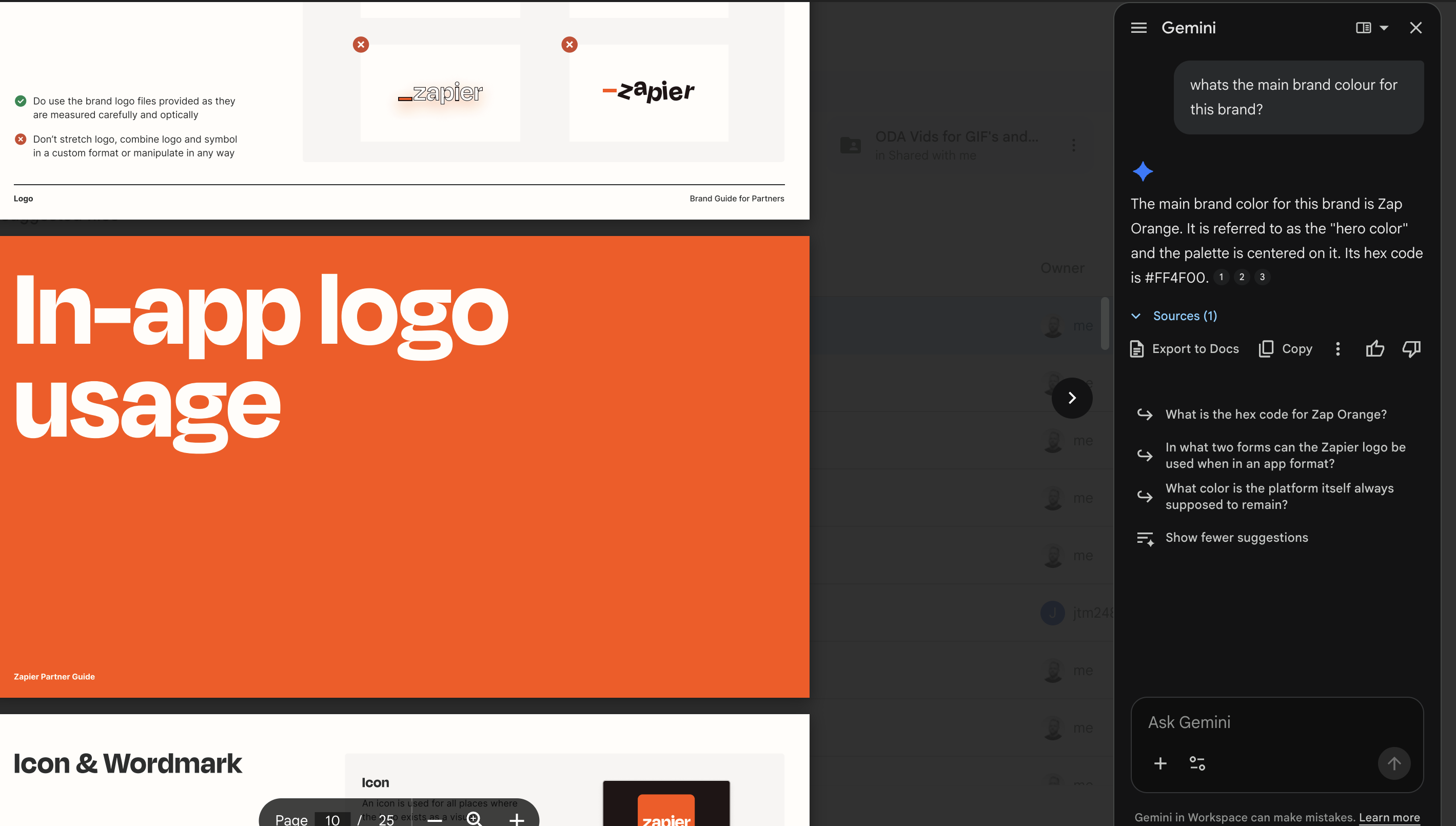
Google integrated Gemini directly into Google Drive in late 2024. If you're already in the Google ecosystem, this is the fastest way to start chatting with PDFs.
How it works:
- Open Google Drive on desktop
- Click the Gemini button (sparkle icon in the top corner)
- Type @ followed by your PDF filename
- Ask questions, request summaries, or combine multiple files
Gemini handles scanned PDFs surprisingly well and supports a 1 million token context window, according to Google's own documentation. That's roughly 1,500 pages of text, far larger than most competitors.
Good for:
- Quick questions about 1-3 files you already have in Drive
- Users who work entirely within Google Workspace
- Free access without additional subscriptions
Limitations:
- Google-only: doesn't work with ChatGPT, Claude, or Copilot
- No persistence: work doesn't save between sessions
- 100 item limit per selection
- Requires Google Workspace Labs or paid plan for full features
- No team sharing beyond standard Drive permissions
Best when: You need fast answers from a few PDFs and you're already working in Google Drive. For quick lookups and occasional analysis, Gemini handles it well.
Option 2: ChatPDF and PDF.ai (Upload Tools)
Dedicated PDF chat tools like ChatPDF and PDF.ai offer cleaner interfaces and features specifically designed for document analysis.
How it works:
- Visit ChatPDF.com or PDF.ai
- Upload your PDF (drag and drop or file picker)
- Wait for processing (usually seconds)
- Chat with your document, get cited answers
ChatPDF stands out for its simplicity. No account required for basic use. Upload, chat, done. PDF.ai adds features like multi-document chat, data extraction, and knowledge base organization for teams.
Good for:
- Occasional PDF analysis when you need answers fast
- One-off document review (reports, specs, research papers)
- Users who don't need persistent access to the same PDFs
Limitations:
- Re-upload required each session
- File limits: ChatPDF free allows 2 PDFs per day, 120 pages each
- Page limits: accuracy drops on longer documents
- Single platform: can't use the same context in other AI tools
- No team sharing on free tiers
Best when: You occasionally need to analyze a PDF and don't mind re-uploading. For students researching papers or professionals reviewing a single document, these tools work well.
Option 3: Connect Google Drive to ChatGPT or Claude (Native Connectors)
Both ChatGPT and Claude now offer native Google Drive connectors. You can connect Google Drive to ChatGPT through the Connectors feature (available on Pro, Team, and Enterprise plans), or connect Google Drive to Claude through its file attachment interface.
Setting up ChatGPT with Google Drive:
- Open ChatGPT and go to Settings (click your profile icon)
- Navigate to Apps and Connectors
- Find Google Drive and click Connect
- Authenticate with your Google account and grant access permissions
- In any chat, click the attachment icon and select "Google Drive"
- Browse or search for specific files, then select them for your conversation
ChatGPT indexes the content of selected files and can answer questions, summarize sections, and extract information. You can select multiple files per conversation, though there are limits on total content size.
Setting up Claude with Google Drive:
- In a Claude conversation, click the "+" button
- Select "Connectors" from the menu
- Choose "Google Drive" and authenticate your Google account (first time only)
- Browse your Drive and select files to include
- Claude processes the files and makes them available for your conversation
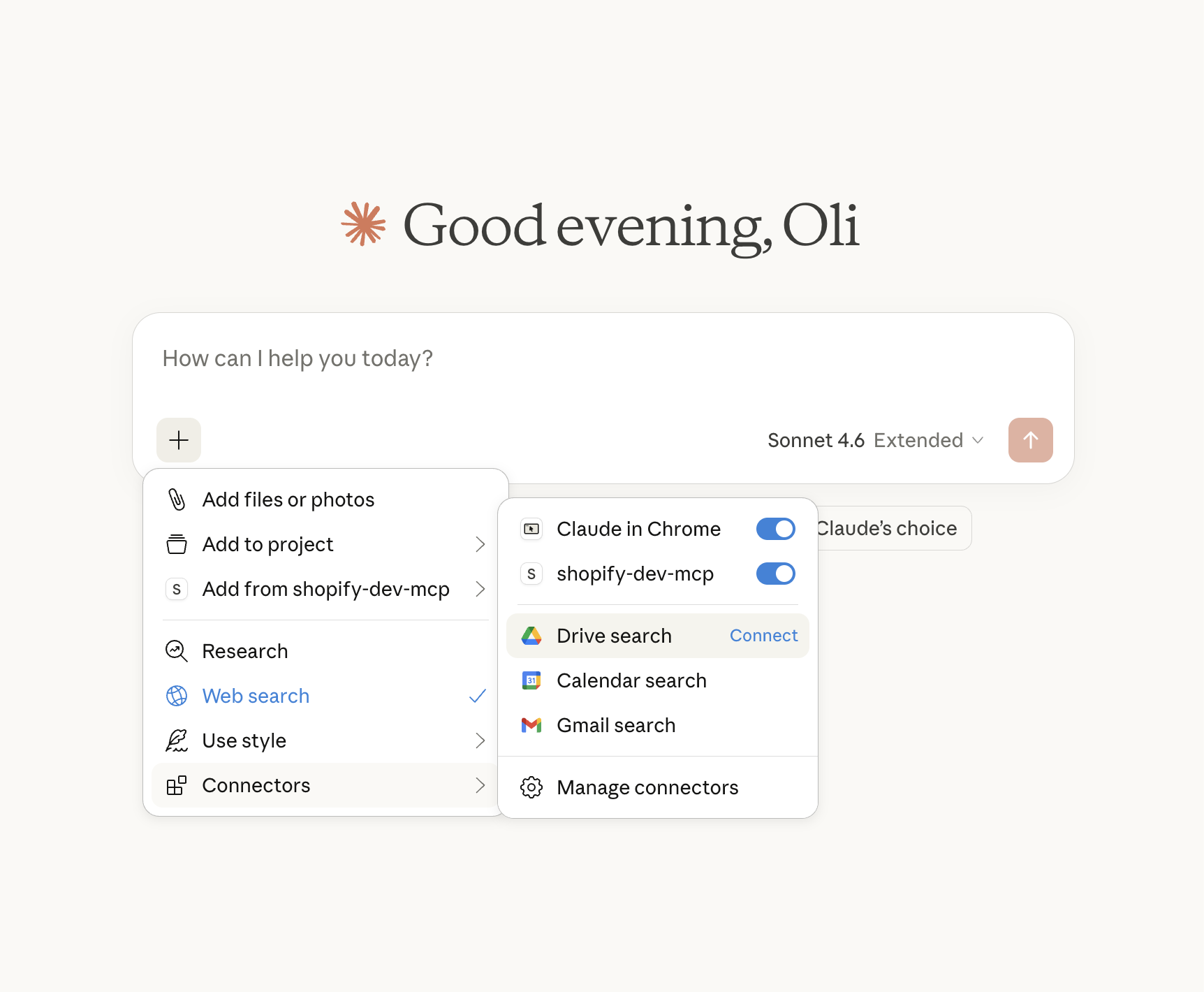
Claude handles PDFs, Google Docs, and other common formats. You can add files at any point in the conversation.
Tips for using native connectors:
- Name files clearly: Since you're browsing and selecting manually, descriptive filenames save time
- Use Drive's search: Both connectors let you search within Drive, so use keywords to find files faster
- Combine related files: Select 2-3 related documents for cross-document questions rather than loading your entire library
Good for:
- Users who prefer ChatGPT or Claude over Gemini
- Selecting specific files per conversation
- Keeping PDFs in Google Drive while using other AI tools
- Conversations where you know exactly which files you need
Limitations:
- Still requires selecting files each conversation (not "library" access)
- ChatGPT connector requires paid plan (Pro, Team, or Enterprise)
- No cross-tool portability: ChatGPT connector only works in ChatGPT
- No persistence: context doesn't carry over between sessions
- File selection, not semantic search across your entire library
- Can't ask "search all my PDFs for X" without manually selecting them first
Best when: You want to use ChatGPT or Claude's capabilities but your PDFs live in Google Drive. Good for power users who prefer manual file selection and know which documents they need before starting a conversation.
Option 4: Context Link (Persistent PDF Knowledge Base)
Context Link takes a different approach: connect your Google Drive folders once, and your PDFs become a searchable AI knowledge base that works across any AI tool.
How it works:
- Connect your Google Drive via OAuth
- Select which folders contain your PDFs
- Context Link processes, chunks, and indexes all documents
- Query via ChatGPT (app connector), Claude (skills), or any AI (direct link)
- New PDFs added to synced folders appear automatically
Instead of uploading individual files, you're connecting your entire PDF library. Context Link runs semantic search across all connected documents and returns the most relevant snippets in clean markdown, ready for AI consumption.
Good for:
- Ongoing access to a large PDF library (100+ documents)
- Teams that need shared access to the same content
- Users who switch between ChatGPT, Claude, Copilot, and other tools
- Workflows that need PDF context in automations (Zapier, Make, custom scripts)
Unique features:
- Semantic search across ALL PDFs: Ask about any topic, Context Link finds relevant snippets across your entire library
- Model-agnostic: Same context works in ChatGPT, Claude, Copilot, Gemini, and custom agents
- Memories: Save settled decisions and reusable knowledge as named Memories, so every AI tool reads the latest version
- Team sharing: Connect sources once at the org level, every team member accesses via their own account
- Auto-sync: New PDFs in connected folders appear automatically
Limitations:
- Paid subscription (starts at $9/month)
- Requires setup (connecting sources, configuring access)
- Doesn't write back to Google Drive (read-only for synced sources)
Best when: You work with PDFs regularly and want AI to "know" your entire library without re-uploading. Particularly valuable for content teams, researchers, support teams, and anyone managing a large document collection.
How to Set Up Context Link with Google Drive
If you decide the persistent knowledge base approach fits your workflow, here's how to set it up. The whole process takes about 10 minutes.
Step 1: Connect Your Google Drive
Sign up for Context Link and navigate to Sources. Click "Add Source" and select Google Drive. You'll authenticate via OAuth (standard Google permission flow) and choose which folders to include.
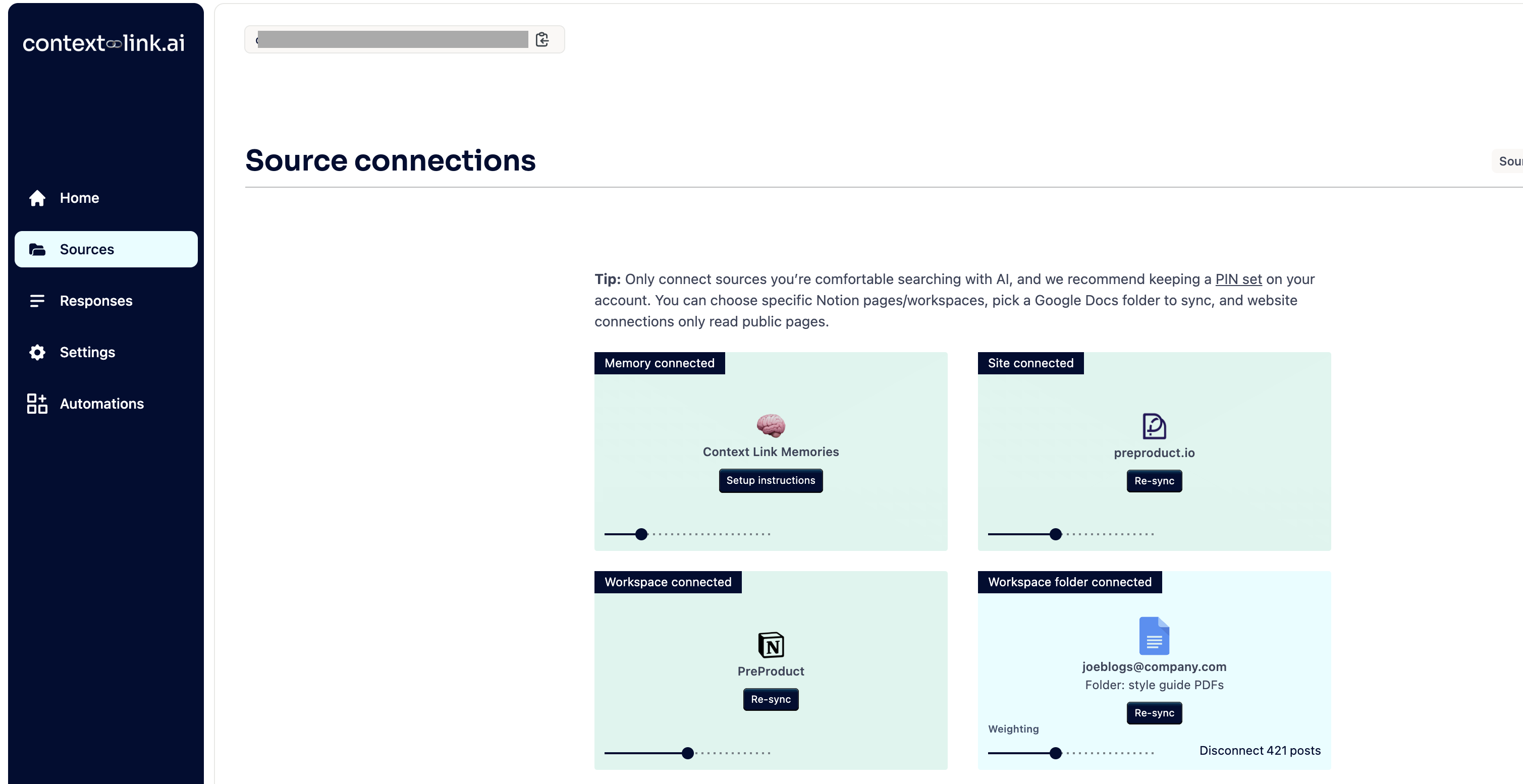
A few tips for folder selection:
- Start focused: Connect one or two folders first to test
- Think about scope: Include folders with PDFs you actually reference, not your entire Drive
- Consider sharing: If team members need access, connect shared folders at the org level
Step 2: Wait for Sync
Context Link processes your PDFs by extracting text, chunking content into searchable segments, and creating semantic embeddings. This typically takes a few minutes for small collections, longer for hundreds of documents.
What gets processed:
- Standard PDFs with text layers
- Scanned PDFs (OCR extraction)
- Google Docs, Sheets, and Slides in the same folders
- Markdown and rich text files
What doesn't work:
- Password-protected PDFs
- Encrypted files
- Image-only files without text
New PDFs added to synced folders appear automatically during the next sync cycle.
Step 3: Connect to Your Preferred AI
Context Link offers multiple ways to access your content:
For ChatGPT users (recommended):
Add the official Context Link ChatGPT app from the ChatGPT app store. Once connected, just ask ChatGPT in natural language: "Get context on our brand voice guidelines" or "What do my research papers say about methodology X?"
For Claude users (recommended):
Install the Context Link skills into a Claude project. Claude can then search your PDFs, save outputs to Memories, and retrieve saved content, all in natural language.
For any AI (universal fallback):
Paste your personal Context Link URL into any AI chat and ask it to visit the link. This works with Copilot, Gemini, Grok, and custom agents.
Step 4: Start Chatting
Once connected, you can query your PDF library naturally:
- "Get context on our current campaign messaging" (searches all marketing PDFs)
- "What do our research papers say about customer retention?" (cross-paper synthesis)
- "Find the shipping policy in our product documentation" (specific document search)
If you want a direct answer rather than raw snippets for the AI to work with, you can also invoke the Ask Question skill (e.g. "ask Context Link what our refund window is") to get a single grounded paragraph with numbered citations back to the source PDFs.
From your Context Link dashboard you can also review previous responses, inspect exactly which snippets were retrieved, and manage Memories: canonical documents you or your AI save (a positioning statement, an ICP definition) so every connected tool reads the latest version.
When to Use Which Method
Here's a quick decision framework:
| Your Situation | Best Option | Why |
|---|---|---|
| Quick question about 1-2 PDFs, already in Google Drive | Gemini | Free, native, fast |
| Occasional PDF analysis, different files each time | ChatPDF | Simple, no account needed |
| Prefer ChatGPT/Claude, PDFs in Drive, manual file selection | Native connectors | Best AI + Drive access |
| Large PDF library, ongoing access, multiple AI tools | Context Link | Persistent, model-agnostic, team-ready |
A few additional considerations:
For individual researchers: If you're analyzing papers one at a time, ChatPDF or Gemini work fine. If you're building a research library you'll reference repeatedly, Context Link's persistence and cross-paper search become valuable.
For content and marketing teams: You likely have brand guidelines, past content, research, and playbooks scattered across PDFs. Context Link lets everyone on the team query the same sources without re-uploading or explaining context each session.
For support and documentation teams: Product manuals, troubleshooting guides, and technical docs in PDF format become searchable across any AI tool. Connect the support inbox alongside the docs and AI can answer from both in a single query.
For small businesses: Product specs, pricing guides, brand assets, and promotional materials often live as PDFs. Being able to ask "what's our current offer messaging?" across your entire document collection saves significant time.
Reducing Hallucinations with Grounded Context
One underappreciated benefit of chatting with your own PDFs: reducing AI hallucinations.
When AI answers questions from general knowledge, it sometimes fabricates plausible-sounding but incorrect information. When AI answers from your specific documents, it's grounded in actual content. The risk of hallucination drops significantly.
This matters especially for:
- Product documentation: You want exact specs and pricing, not AI approximations
- Brand guidelines: Precise messaging and tone rules, not generic suggestions
- Campaign materials: Your actual offer details, not outdated assumptions
Tools like Context Link return source snippets alongside answers, so you can verify where the information came from. That transparency is often more important than the convenience of chat itself.
FAQs
Can I chat with scanned PDFs?
Yes, with limitations. Gemini, ChatPDF, and Context Link all support OCR (Optical Character Recognition) to extract text from scanned documents. Quality depends on scan clarity. Handwritten text, poor scans, and unusual formatting reduce accuracy. Password-protected PDFs won't work with any tool.
What file types are supported besides PDF?
Most tools support more than just PDFs:
- Gemini: Google Docs, Sheets, Slides, and PDFs in Drive
- ChatPDF: PDF, Word (.doc, .docx), PowerPoint, Markdown, text files
- Context Link: PDF, Google Docs, Google Sheets, Notion pages, websites, markdown, and rich text
Is my data secure?
Each tool handles security differently:
- Gemini: Subject to Google's standard Workspace security and privacy policies
- ChatPDF: SOC2 Type II certified storage, SSL encryption, user-controlled deletion
- Context Link: Connects via OAuth (no password storage), processes content to create embeddings, user-controlled source connection and revocation
For sensitive documents, review each tool's privacy policy. Consider whether the convenience of AI chat is worth the data exposure for your specific use case.
Can multiple team members access the same PDFs?
- Gemini: Share via standard Google Drive permissions
- ChatPDF: No team sharing on free tier; limited on paid plans
- Native connectors: Each user connects their own Drive access
- Context Link: Connect sources once at org level, every team member accesses via their account
How does Context Link compare to ChatPDF?
ChatPDF is simpler and has a free tier. Upload a PDF, chat with it, done. Great for occasional use.
Context Link is more powerful but requires setup and subscription. Connect your Google Drive once, search across all PDFs, use with any AI tool, save outputs for reuse. Better for ongoing work with large document collections.
Choose ChatPDF for simplicity and one-off analysis. Choose Context Link for persistent access and team workflows.
Do I need to re-upload when I add new PDFs?
- Gemini: New files in Drive are automatically available
- ChatPDF: Yes, each session requires fresh uploads
- Native connectors: New files in Drive are available, but you select per conversation
- Context Link: New files in synced folders appear automatically after sync
Conclusion
You don't have to choose between convenience and capability when it comes to chatting with PDFs in Google Drive.
For quick, occasional questions: Gemini is free and built right into Drive. For one-off document analysis: ChatPDF offers a clean interface without account requirements. For ChatGPT or Claude users who want Drive access: native connectors bridge the gap.
But if you work with PDFs regularly, if you have a library rather than a handful of files, if you use multiple AI tools, or if your team needs shared access to the same documents, the persistent knowledge base approach changes the game.
Connect your Google Drive to Context Link once. Search across your entire PDF library from any AI tool, with source-backed answers and citations. Stop re-uploading the same documents every session.
The best PDF chat solution is the one you'll actually use every week without friction. Figure out your workflow, pick the right tool, and start getting more value from the documents you already have.
Connect your Google Drive and test your first search in under 10 minutes.
One search across everything
Connect it once. Every AI can read it.
Context Link indexes your files, drive, email, sites and notes in one place, then hands ChatGPT, Claude and Gemini the same source-backed answers with citations.
7-day free trial · No card to start · Cancel any time