# Skill: Save Memory
The **save_memory** skill teaches Claude or Codex how to store content from the current conversation into Context Link as a **Memory**. Memories are living documents saved under any `/slash` route — like `/brand-voice`, `/roadmap`, or `/meeting-notes` — that any AI session can retrieve and build on later.
Instead of losing a great output when you close the chat, you tell your AI to save it. Next time — in a new conversation, a different project, or even a different AI tool — you (or your AI) can fetch it back.
## What are Memories?
Memories are the **WRITE** side of Context Link. While the [get_context skill](/docs/skill-get-context) handles READ (searching your connected sources), Memories give your AI a separate workspace to save and maintain its own documents.
Key things to know:
- **Saved under any `/slash` route** — `/brand-voice`, `/keyword-tracker`, `/support-faq`, `/roadmap`, whatever makes sense
- **Separate from your synced sources** — Memories never modify your Notion pages, Google Docs, or websites. They live alongside them but are completely independent.
- **Shared across sessions** — save something in Claude, retrieve it tomorrow in ChatGPT, Copilot, or any other AI tool that can reach your Context Link
- **Versioned** — saving to the same slug creates a new version. The latest always wins on retrieval, but old versions are preserved.
## When to use this skill
- You've had a productive conversation and want to keep the key takeaways for future sessions
- You want to build up reusable assets over time — brand voice docs, style guides, FAQ answers, project specs
- You're summarising research and want it available for future AI sessions across any tool
- You want to save something under a specific topic name so it's easy to find later
For updating content that's already been saved, see the [Update Memory skill](/docs/skill-update-memory).
## How it works
When triggered, the skill:
1. Picks a slug based on what you asked — or uses `chat-session-{datetime}` for generic "save this conversation" requests, or infers one from the conversation topic
2. Distils the conversation into a clean, reusable markdown document (stripping conversational back-and-forth, keeping decisions, specs, and key details)
3. POSTs it to your Context Link under that slug
The content is then chunked, embedded, and available for retrieval immediately — via the get_context skill, a direct link, the ChatGPT connector, or the API.
## The skill file
Below is the full skill definition. Replace `YOUR_CONTEXT_LINK` with your personal Context Link URL (e.g. `yourname.context-link.ai`). If you use a PIN, append `?p=YOUR_PIN` to the URL.
You can download a pre-populated version from the [Installation](/integrations) page in your dashboard — no manual editing needed.
[skill-content skill="save-memory"]
## Installation
### Claude (Chat, Cowork, and Code)
Skills work with **Claude Chat**, **Claude Cowork**, and **Claude Code**. (If you're using Claude Cowork, you can also use the [Context Link Plugin](/docs/claude-plugin) to install all skills at once.)
To install this skill:
1. In **Claude Chat** or **Claude Cowork**, click **Customize** in the top right
2. Click **Skills**, then **+**, then **Upload a skill**
3. Upload the skill file (download from [Installation](/integrations))
4. **Allow network access** (see below)
For **Claude Code**, place the skill file in your project's `.claude/skills/` directory.
#### Allow network access
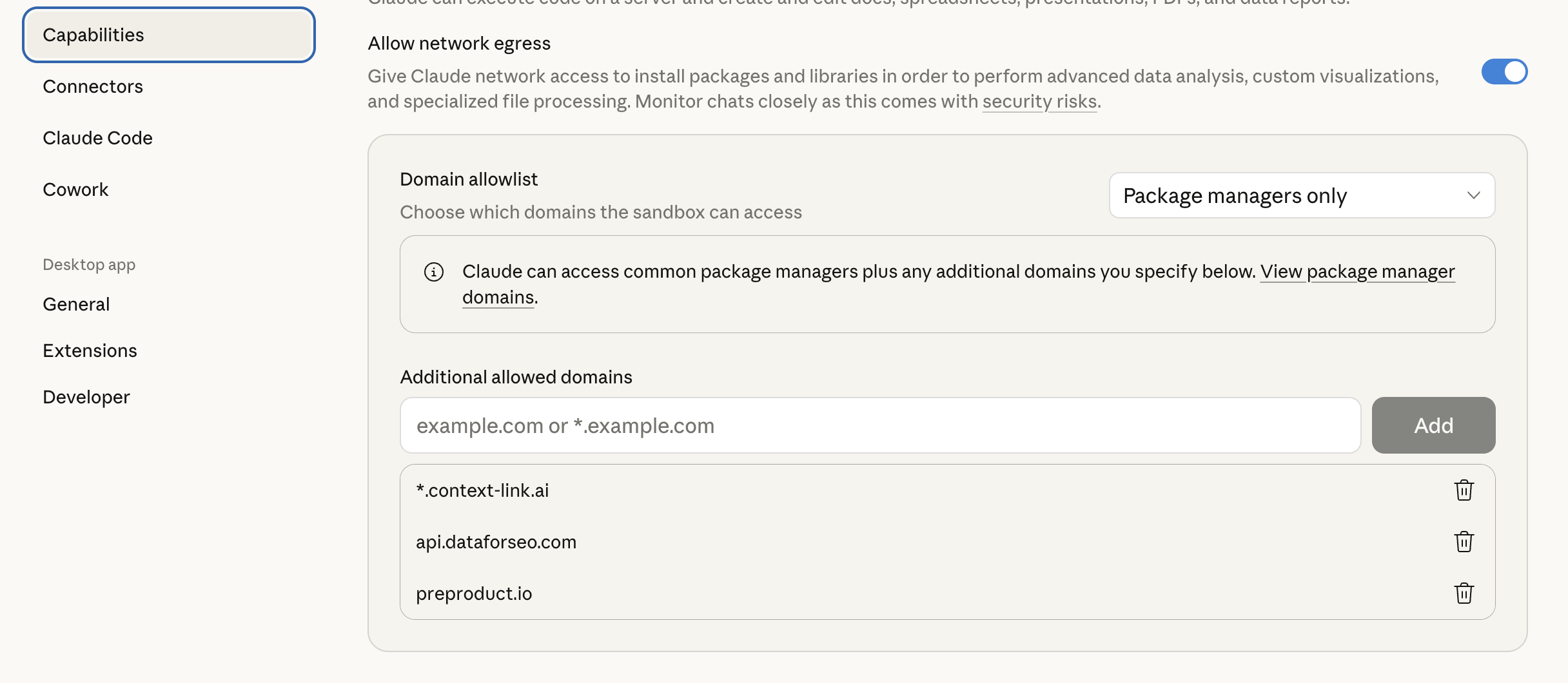
For Claude to reach Context Link, you need to allow the domain in Claude's settings:
1. In Claude, go to **Settings → Capabilities → Domain Allowlist**
2. Add `*.context-link.ai` to the allowlist (or select "All domains")
Once installed, tell Claude to **"save this as [topic]"** and it handles the rest.
### OpenAI Codex
1. Download the skill files from [Installation](/integrations)
2. Unzip and place the `save_memory` folder into `~/.agents/skills/` (or your repo's `.agents/skills/` directory)
3. Codex auto-detects the skill
See the [Codex skills documentation](https://developers.openai.com/codex/skills/) for more on skill file locations and priority.
## Example usage
**Saving a brand voice doc after refining it in conversation:**
> **You:** Save this as brand-voice
>
> **AI:** *Summarises the brand voice guidelines from the conversation, POSTs them to your Context Link under `/brand-voice`.* "Saved to Context Link as `brand-voice`."
**Saving the whole conversation for later:**
> **You:** Save this conversation to Context Link.
>
> **AI:** *Uses `chat-session-2025-01-15-1430` as the slug, distils the conversation into clean markdown, and saves it.* "Saved to Context Link as `chat-session-2025-01-15-1430`."
**Saving research for later use across tools:**
> **You:** Save this to Context Link — I want to reference this competitor analysis tomorrow.
>
> **AI:** *Infers the slug `competitor-analysis`, distils the key findings into clean markdown, and saves it.* Now retrievable from any AI tool via your Context Link.
**Building up a knowledge base over time:**
> **You:** We just nailed down our Q2 roadmap priorities. Save this as q2-roadmap.
>
> **AI:** *Extracts the roadmap decisions, saves under `/q2-roadmap`.* Next week, any team member can ask their AI to "get context on q2-roadmap" and get the latest version. Or for a direct answer, ask Context Link a question outright — *"ask Context Link: what are our Q2 roadmap priorities?"* — and get back one short paragraph with numbered citations. The [Ask Question skill](/docs/skill-ask-question) is a Pro feature and counts toward your monthly LLM allowance.
## Slugs and versioning
- Slugs are case-insensitive and normalised (spaces become dashes)
- Saving to the same slug creates a **new version** — the old content is preserved, but retrieval always returns the latest
- Use descriptive slugs: `/brand-voice`, `/q2-roadmap`, `/onboarding-checklist`, `/keyword-tracker`
- Memories are searchable alongside your synced sources — so when you "get context on brand voice", both your saved Memory and any relevant synced docs come back
---
Don't have a Context Link account yet? [Sign up and connect your first source](https://context-link.ai) — start saving and retrieving your AI's best outputs in minutes.
 Once installed, tell Claude to **"save this as [topic]"** and it handles the rest.
### OpenAI Codex
1. Download the skill files from [Installation](/integrations)
2. Unzip and place the `save_memory` folder into `~/.agents/skills/` (or your repo's `.agents/skills/` directory)
3. Codex auto-detects the skill
See the [Codex skills documentation](https://developers.openai.com/codex/skills/) for more on skill file locations and priority.
## Example usage
**Saving a brand voice doc after refining it in conversation:**
> **You:** Save this as brand-voice
>
> **AI:** *Summarises the brand voice guidelines from the conversation, POSTs them to your Context Link under `/brand-voice`.* "Saved to Context Link as `brand-voice`."
**Saving the whole conversation for later:**
> **You:** Save this conversation to Context Link.
>
> **AI:** *Uses `chat-session-2025-01-15-1430` as the slug, distils the conversation into clean markdown, and saves it.* "Saved to Context Link as `chat-session-2025-01-15-1430`."
**Saving research for later use across tools:**
> **You:** Save this to Context Link — I want to reference this competitor analysis tomorrow.
>
> **AI:** *Infers the slug `competitor-analysis`, distils the key findings into clean markdown, and saves it.* Now retrievable from any AI tool via your Context Link.
**Building up a knowledge base over time:**
> **You:** We just nailed down our Q2 roadmap priorities. Save this as q2-roadmap.
>
> **AI:** *Extracts the roadmap decisions, saves under `/q2-roadmap`.* Next week, any team member can ask their AI to "get context on q2-roadmap" and get the latest version. Or for a direct answer, ask Context Link a question outright — *"ask Context Link: what are our Q2 roadmap priorities?"* — and get back one short paragraph with numbered citations. The [Ask Question skill](/docs/skill-ask-question) is a Pro feature and counts toward your monthly LLM allowance.
## Slugs and versioning
- Slugs are case-insensitive and normalised (spaces become dashes)
- Saving to the same slug creates a **new version** — the old content is preserved, but retrieval always returns the latest
- Use descriptive slugs: `/brand-voice`, `/q2-roadmap`, `/onboarding-checklist`, `/keyword-tracker`
- Memories are searchable alongside your synced sources — so when you "get context on brand voice", both your saved Memory and any relevant synced docs come back
---
Once installed, tell Claude to **"save this as [topic]"** and it handles the rest.
### OpenAI Codex
1. Download the skill files from [Installation](/integrations)
2. Unzip and place the `save_memory` folder into `~/.agents/skills/` (or your repo's `.agents/skills/` directory)
3. Codex auto-detects the skill
See the [Codex skills documentation](https://developers.openai.com/codex/skills/) for more on skill file locations and priority.
## Example usage
**Saving a brand voice doc after refining it in conversation:**
> **You:** Save this as brand-voice
>
> **AI:** *Summarises the brand voice guidelines from the conversation, POSTs them to your Context Link under `/brand-voice`.* "Saved to Context Link as `brand-voice`."
**Saving the whole conversation for later:**
> **You:** Save this conversation to Context Link.
>
> **AI:** *Uses `chat-session-2025-01-15-1430` as the slug, distils the conversation into clean markdown, and saves it.* "Saved to Context Link as `chat-session-2025-01-15-1430`."
**Saving research for later use across tools:**
> **You:** Save this to Context Link — I want to reference this competitor analysis tomorrow.
>
> **AI:** *Infers the slug `competitor-analysis`, distils the key findings into clean markdown, and saves it.* Now retrievable from any AI tool via your Context Link.
**Building up a knowledge base over time:**
> **You:** We just nailed down our Q2 roadmap priorities. Save this as q2-roadmap.
>
> **AI:** *Extracts the roadmap decisions, saves under `/q2-roadmap`.* Next week, any team member can ask their AI to "get context on q2-roadmap" and get the latest version. Or for a direct answer, ask Context Link a question outright — *"ask Context Link: what are our Q2 roadmap priorities?"* — and get back one short paragraph with numbered citations. The [Ask Question skill](/docs/skill-ask-question) is a Pro feature and counts toward your monthly LLM allowance.
## Slugs and versioning
- Slugs are case-insensitive and normalised (spaces become dashes)
- Saving to the same slug creates a **new version** — the old content is preserved, but retrieval always returns the latest
- Use descriptive slugs: `/brand-voice`, `/q2-roadmap`, `/onboarding-checklist`, `/keyword-tracker`
- Memories are searchable alongside your synced sources — so when you "get context on brand voice", both your saved Memory and any relevant synced docs come back
---