# How to Connect Basecamp to Context Link
This guide walks you through connecting your Basecamp 4 account to Context Link. Once connected, your AI assistants can search your Basecamp messages, documents, and uploaded files.
Connecting Basecamp to Context Link: authorize access, select a project, and start syncing.
---
## Prerequisites
* A **Context Link** account with at least one available connection slot.
* A **Basecamp 4** account with access to the projects you want to sync.
---
## Step 1: Start the Connection
1. From your **Source Connections** dashboard, find the **+ New Source** toolbar.
2. Click the **Basecamp** icon to open the integration card.
3. Click **Connect Basecamp**.
This opens an OAuth permission prompt from Basecamp.
## Step 2: Authorize Access
Basecamp will ask you to approve access for *Context Link ltd*.
Click **"Yes, I'll allow access"** to authorize the connection. Context Link needs this to read your projects, messages, and documents.
## Step 3: Select a Project
Once authorized, a new connection card appears in your dashboard.
1. Click the **"Select a project..."** dropdown. This fetches a list of your active Basecamp projects.
2. Choose the project you want to sync.
3. The connection enters a **syncing** state with a progress bar while it indexes your content.
Once syncing finishes, the card shows your project name and a **Re-sync** button.
## Step 4: Verify Your Content
Switch to the **Sources** tab and filter by "Basecamp" to see your synced items. Each item has a "view" link so you can check the imported content.
---
## What Gets Synced
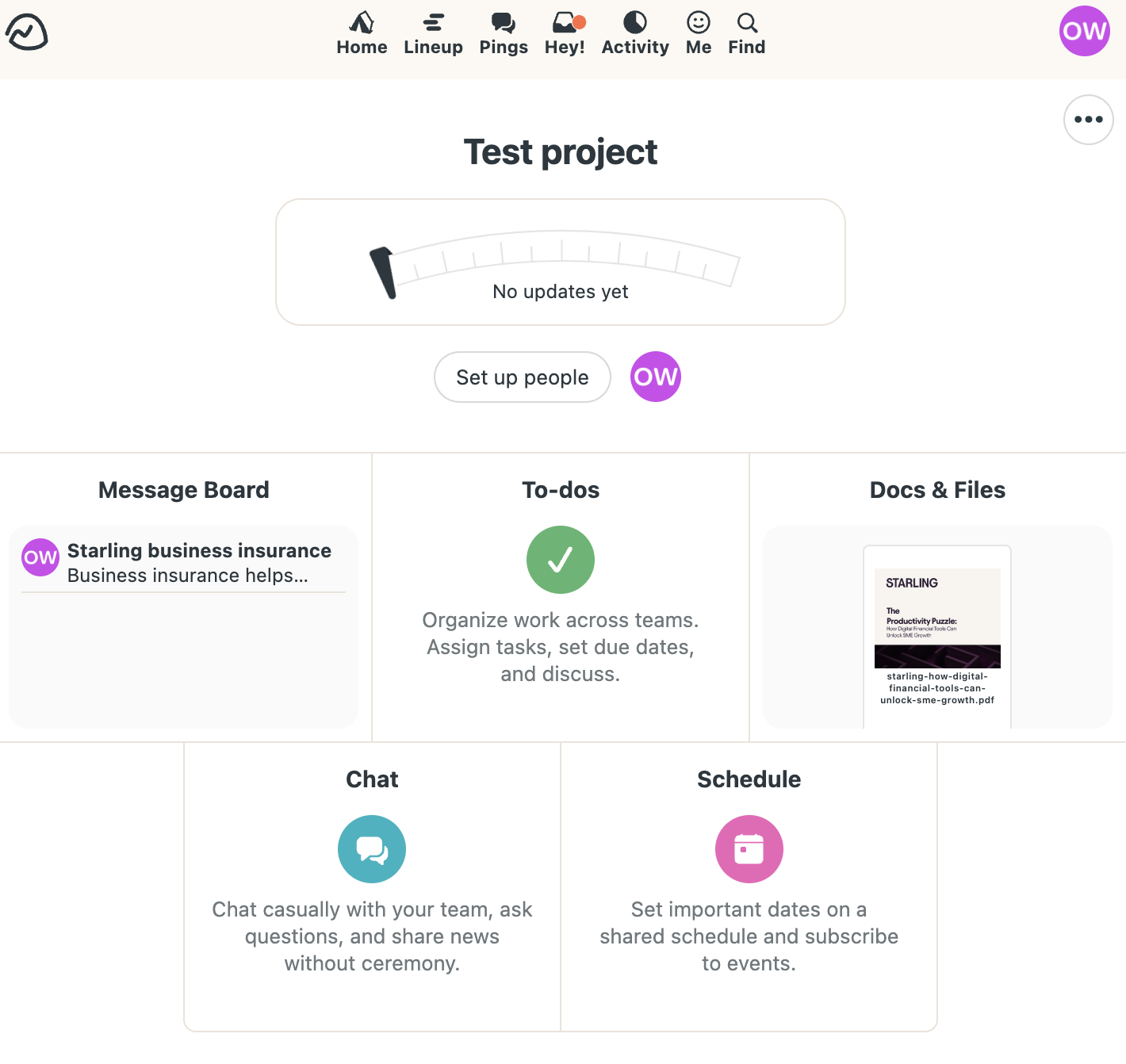
Context Link pulls content from two areas of your selected Basecamp project:
**Message Board** - All messages and posts from the project's message board are synced. FYI and Heartbeat categories are automatically excluded.
**Docs & Files** - Documents and uploaded files from the Docs & Files section are synced, including:
- Plain text files
- Markdown files
- RTF files
- PDF documents
Other file types (images, spreadsheets, etc.) are not currently supported.
A synced Basecamp connection card with the project name and Re-sync button.
---
## Tips
**Multiple connections.** You can connect more than one Basecamp project at the same time. Each project gets its own connection card, so you can manage them independently.
**Weighting.** Each connection card has a **Weighting** slider. Adjust this to control how much influence a particular Basecamp source has when your AI searches for context. A higher weighting makes results from that source rank higher.
**Disconnecting.** You can remove a specific connection at any time using the **"Disconnect... posts"** link on its card. This removes the synced content from your Context Link account.
**Re-syncing.** Click **Re-sync** on a connection card to pull in any new or updated content from Basecamp. This is useful after adding new messages or documents to your project. Pro Context Link plans automatically resync every 24 hours.
---
Don't have a Context Link account yet? [Sign up and connect your first source](https://context-link.ai) - you can be searching your Basecamp content in minutes.