# Claude Plugin
> **Note:** The Context Link Plugin currently works with **Claude Cowork** and **Claude Code** . For Claude Chat use the individual [skills](/docs/skill-get-context) instead.
The **Context Link Plugin** bundles the three core Context Link skills into a single file you can install in Claude Cowork with two clicks. Instead of uploading skills one by one, the plugin gives Claude everything it needs to search your sources, save Memories, and update them — all in one go.
## What's included
The plugin contains:
- **get_context** — search your connected sources (Notion, Google Docs, OneDrive, websites) and Memories by meaning
- **save_memory** — save conversation outputs to Context Link as reusable Memories
- **update_memory** — retrieve an existing Memory, merge in new information, and save it back
These are the same skills available individually, but packaged together for convenience.
The [custom_connections skill](/docs/custom-connections) is not part of the plugin: it embeds your personal API token, so you download it separately from the [Installation](/integrations) page.
## Installation
1. Download the plugin from the [Installation](/integrations) page in your dashboard
2. In **Claude Cowork**, click **Customize** in the top right
3. Click the **+** button, then **Upload plugin**
4. Select the downloaded `context-link-plugin.zip`
5. **Allow network access** (see below)
### Allow network access
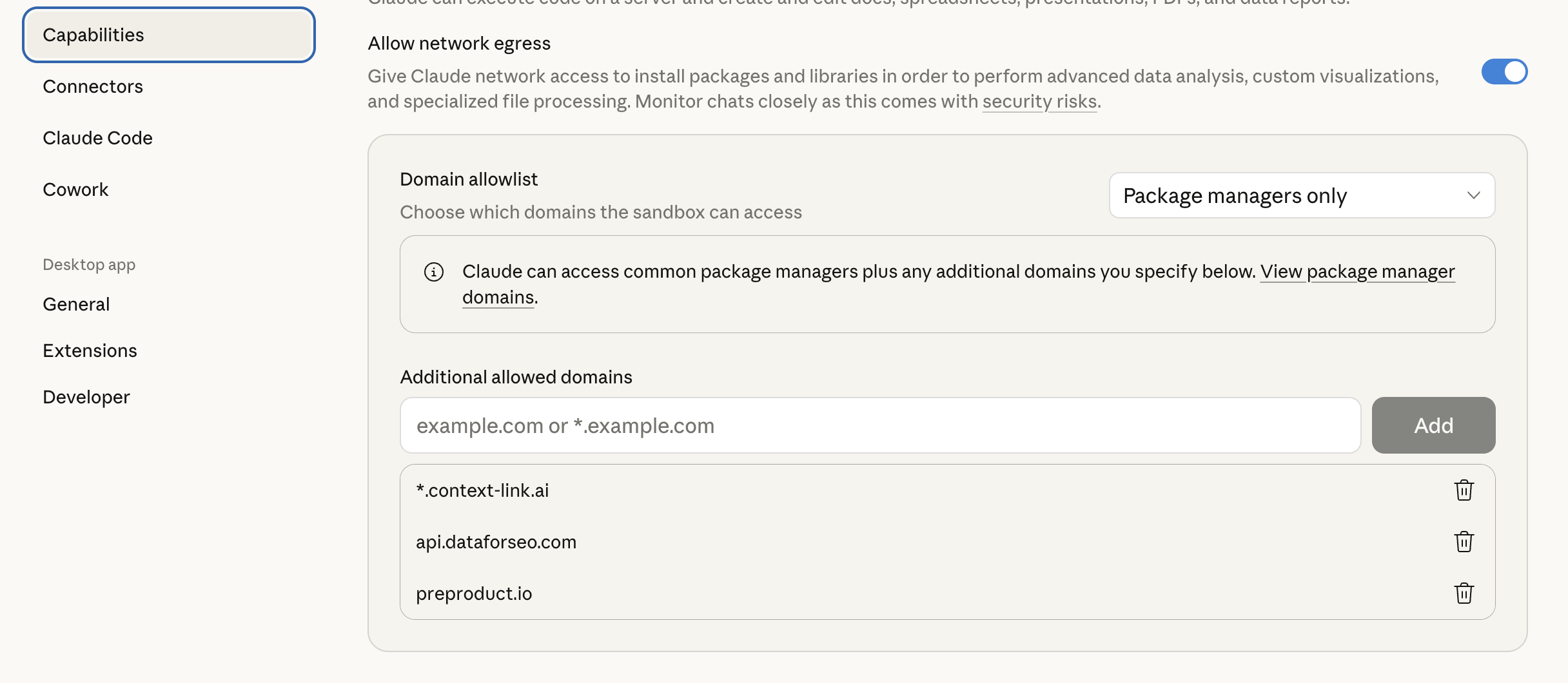
For Claude to reach Context Link, you need to allow the domain in Claude's settings:
1. In Claude, go to **Settings → Capabilities → Domain Allowlist**
2. Add `*.context-link.ai` to the allowlist (or select "All domains")
 That's it. Claude now has access to all three bundled Context Link skills.
## Usage
Once installed, you can use any of these phrases in Claude:
- **"Get context on [topic]"** — searches your connected sources and returns relevant snippets
- **"Ask Context Link: [question]"** — returns one short paragraph answering your question with numbered citations (the [Ask Question skill](/docs/skill-ask-question) is a Pro feature and counts toward your monthly LLM allowance)
- **"Save this as [name]"** — saves the conversation output as a Memory under `/name`
- **"Update [name] on Context Link"** — fetches an existing Memory, merges in new info, and saves it back
Claude will automatically use the right skill based on what you ask.
## Plugin vs individual skills
| | Plugin | Individual skills |
|---|---|---|
| Compatibility | Claude Cowork only | Claude Chat, Cowork, and Code |
| Installation | One file, two clicks | Three files, uploaded separately |
| Updates | Re-download and re-upload the plugin | Update each skill file individually |
| Customisation | Use as-is | Edit skill files before uploading |
If you're using Claude Cowork, the plugin is the easiest setup. If you're using Claude Chat or Claude Code, use the individual skills instead. If you need to customise the skill instructions (e.g. change trigger phrases or add specific rules), download and edit the individual skill files.
## How it fits with other access methods
The Claude Plugin is one of several ways to connect Claude to your Context Link:
- **Claude Plugin** (this doc) — all skills in one file, Claude Cowork only
- **Individual skills** — upload skills one by one, works with Claude Chat, Cowork, and Code
- **Direct link** — paste your Context Link URL into any Claude chat and ask it to visit
- **API** — call your Context Link from scripts, automations, or custom integrations
The plugin is the recommended approach for Claude Cowork and Claude Code users. For Claude Chat use the individual skills.
## Troubleshooting
**Claude says it can't reach Context Link**
First, make sure you've allowed `*.context-link.ai` in Claude's domain allowlist (see [Allow network access](#allow-network-access) above). Then verify your Context Link URL is accessible by visiting it in your browser. If you're using a PIN, the plugin includes it automatically — you don't need to add it manually.
**Skills aren't triggering**
Try being explicit: "Use Context Link to get context on [topic]" or "Save this to Context Link as [name]". Claude should recognise the intent, but explicit phrasing helps.
**Need to update the plugin**
Download the latest version from [Installation](/integrations) and upload it again. The new version replaces the old one.
---
That's it. Claude now has access to all three bundled Context Link skills.
## Usage
Once installed, you can use any of these phrases in Claude:
- **"Get context on [topic]"** — searches your connected sources and returns relevant snippets
- **"Ask Context Link: [question]"** — returns one short paragraph answering your question with numbered citations (the [Ask Question skill](/docs/skill-ask-question) is a Pro feature and counts toward your monthly LLM allowance)
- **"Save this as [name]"** — saves the conversation output as a Memory under `/name`
- **"Update [name] on Context Link"** — fetches an existing Memory, merges in new info, and saves it back
Claude will automatically use the right skill based on what you ask.
## Plugin vs individual skills
| | Plugin | Individual skills |
|---|---|---|
| Compatibility | Claude Cowork only | Claude Chat, Cowork, and Code |
| Installation | One file, two clicks | Three files, uploaded separately |
| Updates | Re-download and re-upload the plugin | Update each skill file individually |
| Customisation | Use as-is | Edit skill files before uploading |
If you're using Claude Cowork, the plugin is the easiest setup. If you're using Claude Chat or Claude Code, use the individual skills instead. If you need to customise the skill instructions (e.g. change trigger phrases or add specific rules), download and edit the individual skill files.
## How it fits with other access methods
The Claude Plugin is one of several ways to connect Claude to your Context Link:
- **Claude Plugin** (this doc) — all skills in one file, Claude Cowork only
- **Individual skills** — upload skills one by one, works with Claude Chat, Cowork, and Code
- **Direct link** — paste your Context Link URL into any Claude chat and ask it to visit
- **API** — call your Context Link from scripts, automations, or custom integrations
The plugin is the recommended approach for Claude Cowork and Claude Code users. For Claude Chat use the individual skills.
## Troubleshooting
**Claude says it can't reach Context Link**
First, make sure you've allowed `*.context-link.ai` in Claude's domain allowlist (see [Allow network access](#allow-network-access) above). Then verify your Context Link URL is accessible by visiting it in your browser. If you're using a PIN, the plugin includes it automatically — you don't need to add it manually.
**Skills aren't triggering**
Try being explicit: "Use Context Link to get context on [topic]" or "Save this to Context Link as [name]". Claude should recognise the intent, but explicit phrasing helps.
**Need to update the plugin**
Download the latest version from [Installation](/integrations) and upload it again. The new version replaces the old one.
---
Don't have a Context Link account yet? [Sign up and connect your first source](https://context-link.ai) — you can be searching your own content in Claude within minutes.